


HubSpot email verification and validation
Verify the contacts already in your HubSpot CRM. Connect once, pick a list, and each contact gets a result written to its record. Catch-all addresses get deliverable or undeliverable, not risky. You do not export or re-import anything.
What the HubSpot integration does
Four steps, all inside HubSpot and Giggal.ai.
Import contacts or a list
Choose All contacts or any HubSpot list. You see the number of emails first, so you know the credit cost before you start.
Verify every address
Each mailbox is checked to see if it exists. Catch-all domains get a clear result, not risky. 1 credit per address.
Write results back
Five Giggal properties are set on each contact, so the result stays with the record.
Filter and build lists
Use Giggal email status in HubSpot filters and active lists. Remove bad addresses before your next send.
How to connect HubSpot and verify your first list
There are four steps and they take about two minutes. You need a Giggal.ai account and HubSpot permission to install apps and edit contact properties.
- 1
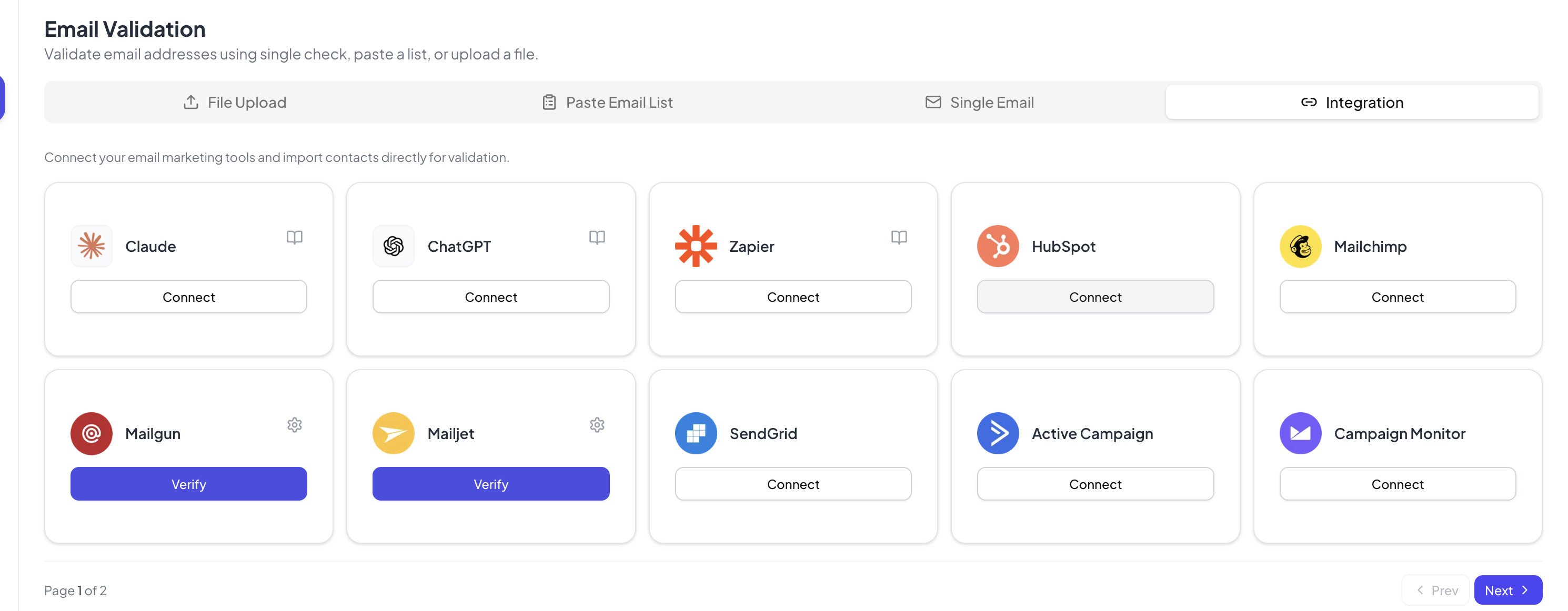
Open the Integration tab in Giggal.ai
Sign in to Giggal.ai, go to Email Validation and open the Integration tab. Find the HubSpot card and click Connect. If you have no account yet, sign-up takes a minute and includes 1,000 free credits.
- 2
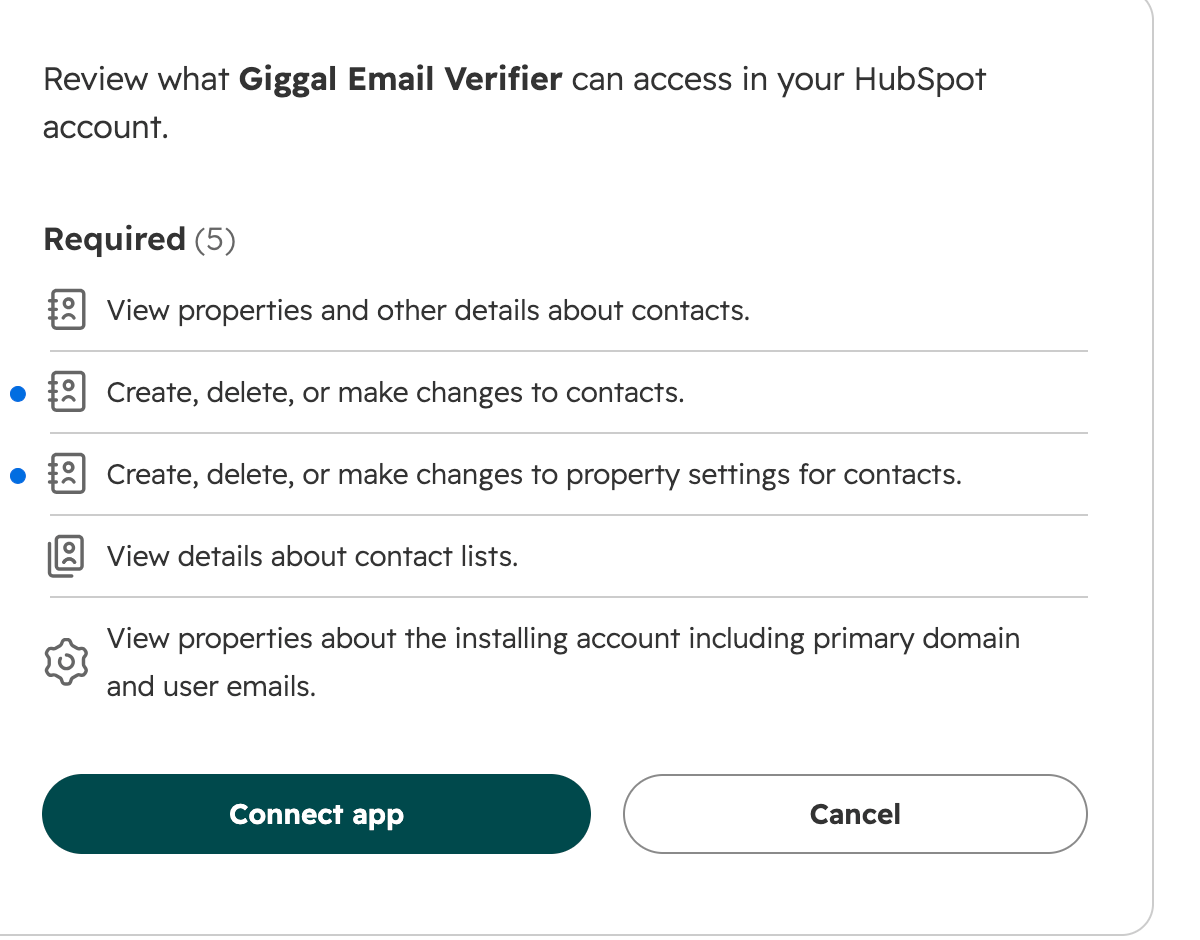
Approve the permissions in HubSpot
HubSpot shows its own approval screen with everything Giggal.ai can access: view contact properties, change contacts, change contact property settings, view contact lists, and read the installing account. Review the list and click Connect app. You return to Giggal.ai, and the HubSpot card now shows Verify.
- 3
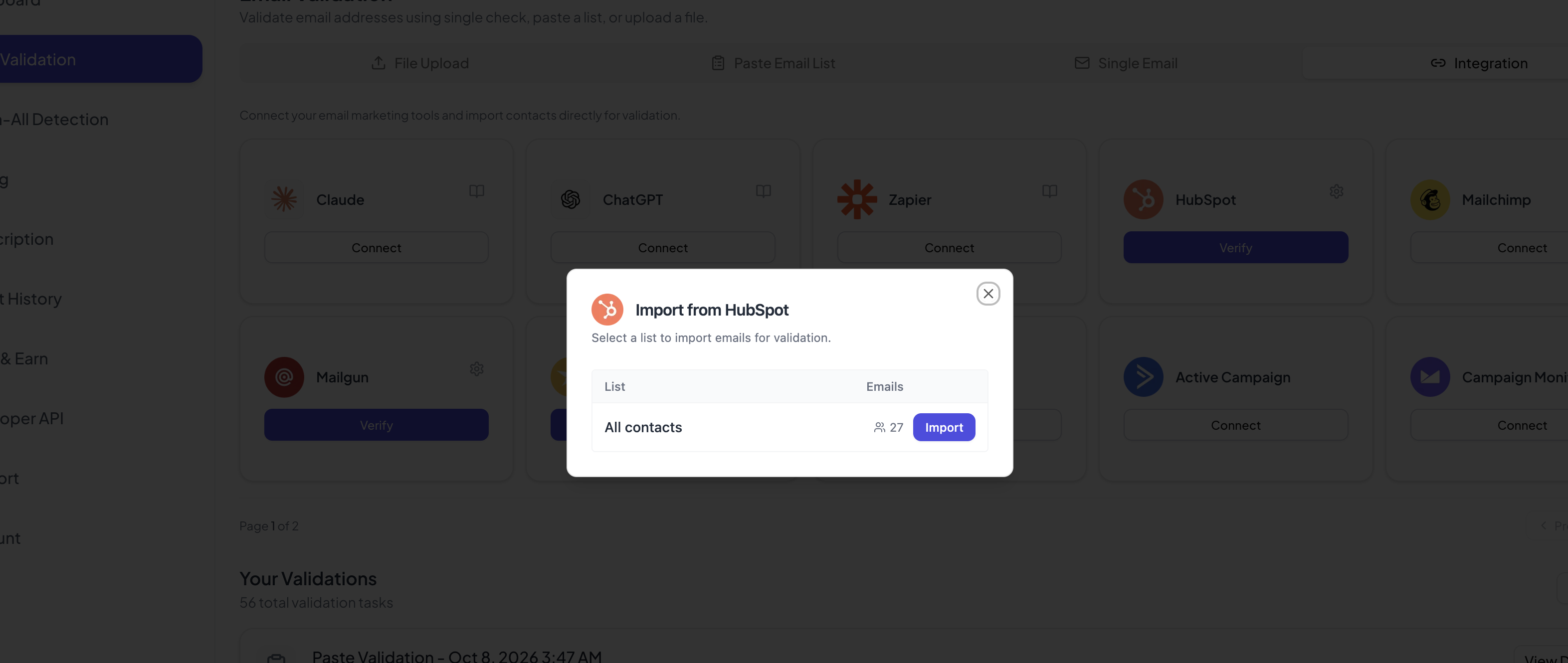
Import a contact list
Click Verify on the HubSpot card to open the Import from HubSpot window. Choose All contacts or any list in your portal. Each row shows how many emails it holds, so you know the cost before you start. Click Import.
- 4
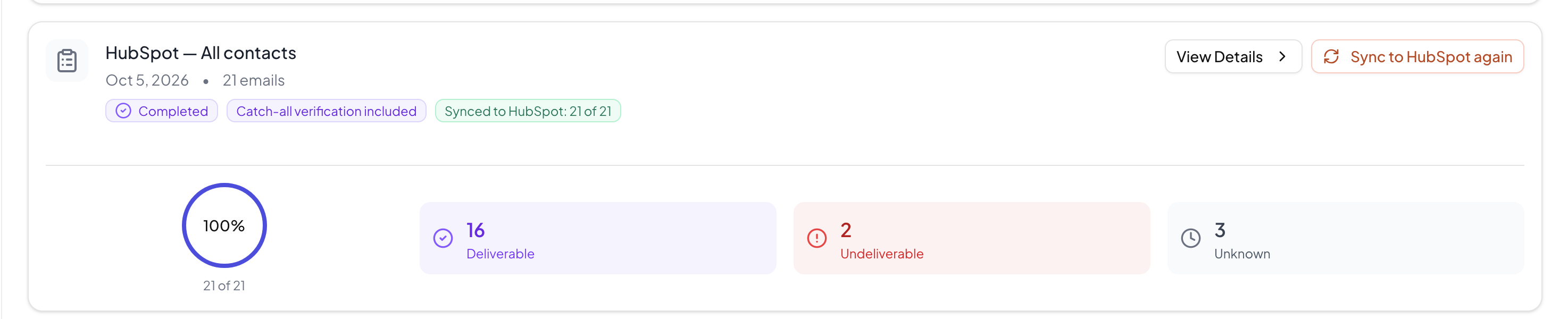
Verify the list and sync the results
Giggal.ai checks every address and writes the result to each HubSpot contact as it finishes. The task card shows the breakdown and a Synced to HubSpot count. Click Sync to HubSpot to run the write again at any time.
Why use a catch-all email verifier with HubSpot
About 30% of a B2B list sits on catch-all domains. Many verifiers return those contacts as risky, so you cannot act on them. Giggal.ai is an email verifier that runs extra checks on catch-all domains and verifies addresses behind secure email gateways such as Proofpoint and Mimecast. Most of those contacts come back as deliverable or undeliverable. See how catch-all verification works.
HubSpot properties Giggal.ai writes to each contact
The five properties are created the first time you run a verification. They sit in a property group named Giggal Email Verifier. Your existing HubSpot properties are not changed.
| Property | Type | What it tells you |
|---|---|---|
| Giggal email is valid | Checkbox | Yes when the mailbox was confirmed to exist. |
| Giggal email status | Dropdown | Deliverable, Undeliverable, Risky or Unknown. |
| Giggal deliverability score | Number | Confidence from 0 to 100. |
| Giggal email detail | Text | A short reason for the result. |
| Giggal verified at | Date | When the address was last checked. |
HubSpot permissions and data
Giggal.ai asks for four HubSpot scopes. Each one has a single use.
| crm.objects.contacts.read | Read the email address on the contacts you choose to verify. |
| crm.objects.contacts.write | Write the verification result back to those contacts. |
| crm.schemas.contacts.write | Create the five Giggal properties on first use. |
| crm.lists.read | Show your contact lists so you can pick one to verify. |
Giggal.ai reads only the email address of the contacts you choose. It does not create or delete contacts, it changes no properties other than the five above, and it never sends email to the addresses it checks.
HubSpot email verification FAQ
Does Giggal.ai send email to my contacts?+
No. Verification talks to the receiving mail server and stops before any message is sent. Your contacts receive nothing, in their inbox or their spam folder.
What does it change in my HubSpot account?+
On first use it creates a property group called Giggal Email Verifier with five custom contact properties. It then writes results into those properties only. Existing HubSpot properties are not changed, and no contacts are created or deleted.
Can it verify catch-all domains?+
Yes. This is the main reason to use Giggal.ai with HubSpot. Many verifiers return risky or unknown on catch-all domains. Giggal.ai checks further and returns deliverable or undeliverable on most of them.
Is email validation the same as email verification?+
In practice, yes. Both terms describe checking whether an address can receive mail. Giggal.ai checks the format, the domain mail servers and the mailbox, then writes one result to the HubSpot contact.
How much does it cost?+
One credit per address, and catch-all checks are included. New accounts start with 1,000 free credits, and the price per address drops as volume goes up.
How do I use the results in HubSpot?+
Filter contacts or build an active list on Giggal email status. A common setup is an active list of Deliverable contacts as the send audience and a suppression list of Undeliverable contacts.
How do I disconnect?+
Open the Integration tab in Giggal.ai, click the settings icon on the HubSpot card and choose Disconnect. You can also remove the app in HubSpot under Settings, Integrations, Connected Apps. Results already written stay on your contacts.
Clean up your HubSpot contacts
Connect once and every contact in your CRM gets a verification result you can filter on. You start with 1,000 free credits, no card required.